
AutoHunt Tutorial
What is AutoHunt?
AutoHunt is the built-in hunting assistant of the SahaRO client. It fights monsters, picks up loot, drinks potions, rests, teleports away from danger and can even go to town to restock. You set the rules once in a control panel inside the game, press Start Hunt, and the character does the rest.
- Allowed?
- Yes. AutoHunt is an official feature of this server, not a cheat.
- Where it runs
- On the server. Your client only shows the panel and sends your settings.
- Open the panel
Pausekey (in game)- Mini HUD
Homekey
Every decision (whom to attack, when to drink a potion, where to walk) is made by the game server. Because of this, AutoHunt cannot do anything the server does not allow, and the same rules apply to every player. Your character is only automated while you are logged in: the hunt ends when you disconnect.
Getting started
Open the panel
Once you are in the game world, press Pause to open or close the AutoHunt panel. You can also click the gear button on the mini HUD. The panel does not appear on the login or character screen.
Quick start
- Walk to a hunting map that allows AutoHunt (see Server limits).
- Press
Pauseand open the Basic tab. Check the Teleport, Resting and Search settings. - In the Skill tab, add the attack skills you want to use. With Use normal attack on, the character also hits normally between skills.
- In the Potion tab, add the HP and SP potions you carry.
- Press Save & Apply at the bottom right. Nothing you change counts until you save.
- Press Start Hunt in the Basic tab (or click the mini HUD).
Start, pause and stop
- Start Hunt begins a session. While it runs the same button becomes Stop Hunt, and a Pause / Resume button appears next to it.
- The Hunt menu at the top has the same Start, Stop and Pause entries.
- The Hunt Engine card shows a badge (Running, Paused, Stopped or Offline) and three cells: State, Uptime and Target.
- The state can be Idle, Searching, Approaching, Attacking, Looting, Resting, Recovering, Roaming, Teleporting or Paused.
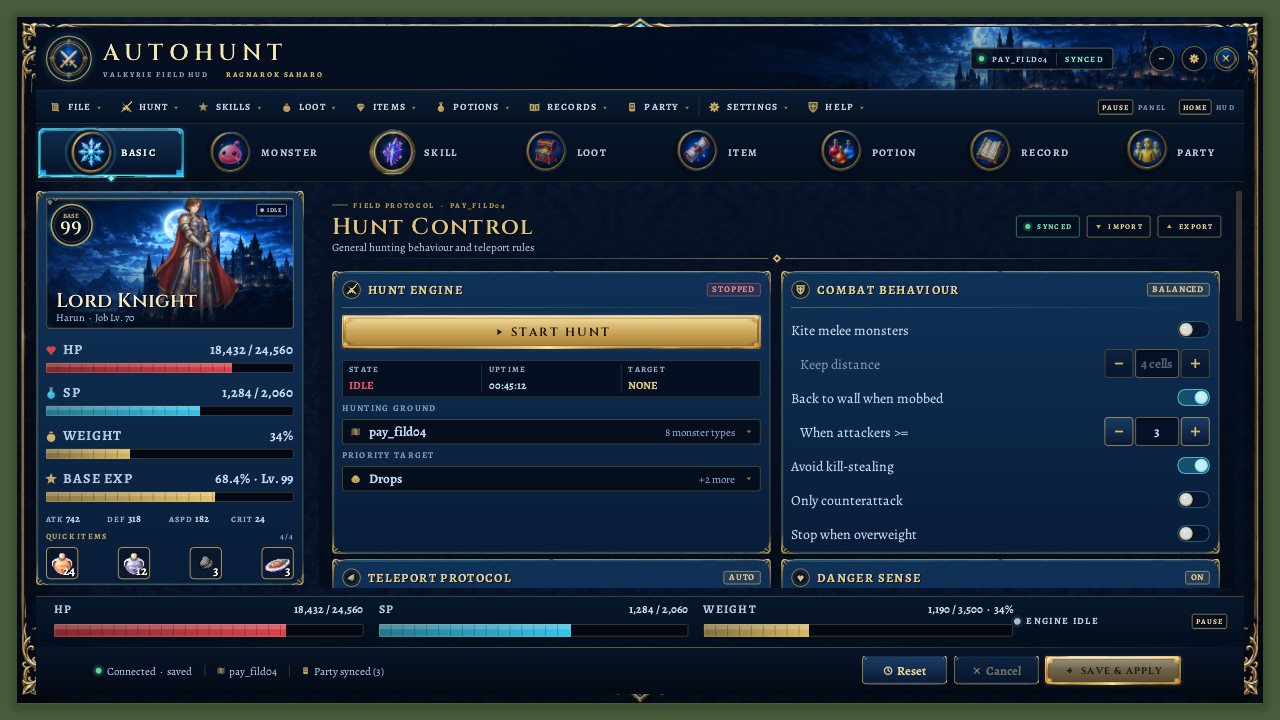
Layout of the panel
- Menu bar (File, Hunt, Skills, Loot, Items, Potions, Records, Party, Settings, Help): shortcuts to the same functions as the tabs. File has Save & Apply, Revert Changes, Export/Import Profile, Reset to Defaults and Close Panel. Settings has Show HUD, interface scale and skin. Help shows the hotkeys. The two key caps on the right remind you:
Pause= panel,Home= HUD. - Tab bar: Basic, Monster, Skill, Loot, Item, Potion, Record, Party.
- Character card (left): your level, job, HP, SP, weight, Base EXP, ATK/DEF/ASPD/CRIT and your quick items (the potions and buff items you set up in the Item and Potion tabs, with the count in your bag). In a party, the party is listed as well.
- Vitals strip and footer: HP, SP and weight bars, plus the sync status (see below).
Saving: the sync status
Your settings are stored on the server per character. The footer shows where they stand:
| Footer text | Meaning |
|---|---|
| Connected · saved | The server has your current settings. |
| Unsaved changes | You changed something. Press Save & Apply to send it, or Cancel to throw the changes away. |
| Saving... / Resyncing... | Waiting for the server. Wait a moment. |
| Connecting... | The handshake with the server is still running. |
| Not allowed here / Offline | The server refuses AutoHunt for this character or map, or there is no connection. Hover the message to see the reason. The Start button is disabled. |
Reset loads the default settings into the panel but does not send them until you press Save & Apply. Export Profile (File menu) writes your settings to AutoHunt\profile.ahcfg in the game folder, Import Profile reads it back; you still have to save afterwards.
The mini HUD
The mini HUD is a small bar that stays on screen while you play, so you can hunt without keeping the big panel open. Toggle it with Home (or Settings → Show HUD). You can drag it around.
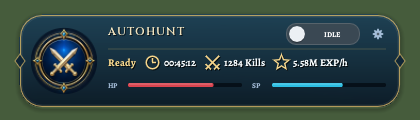
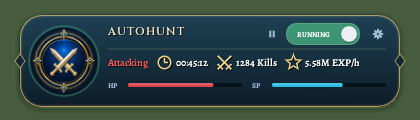
- It shows the state, the session time, kills, EXP per hour and your HP and SP bars.
- Click the bar (or the round medallion) to start or stop the hunt. It glows green when a click would start and red when it would stop.
- The gear button opens the full panel. The small pause button (only while running) pauses and resumes.
Basic tab: Hunt Control
General behaviour of the bot (see the screenshot in Getting started). The tab is split into cards.
Hunt Engine
- Start Hunt / Stop Hunt / Pause / Resume, state, uptime and current target.
- Hunting ground: the current map and how many monster types live there. Click it to jump to the Monster tab.
- Priority target: your first priority monster (or "Any monster"). Click it to open the Monster tab.
Combat Behaviour
- Kite melee monsters with Keep distance (2-8 cells): bow and magic classes step back from melee monsters and keep shooting.
- Back to wall when mobbed with When attackers >= (2-8): melee classes move next to a wall so fewer monsters can hit at once.
- Avoid kill-stealing: never touch monsters that other players are fighting.
- Only counterattack: only fight monsters that attack you.
- Stop when overweight: ends the hunt when you are overweight.
Teleport Protocol
Teleport (with your teleport item from the Item tab, or a free warp if the server allows it) when things go wrong. Each trigger can be set to Off.
- Use teleport item: master switch. The conditions below only work when it is on.
- No combat for (up to 120 s): nothing to fight, so move on.
- Monsters on screen >= (up to 30).
- Single hit >= Max HP (percent): one hit took this much of your HP.
- Mobbed by >= (HP < 50%): that many monsters on you while your HP is under half.
- Misses in a row >=: your attacks keep missing.
- Damage in 10 s >= Max HP (percent).
- Attacked while sitting.
- Targets keep from portals and from players (0-14 cells): monsters this close to a portal or to another player are left alone, unless they attack you. Your party does not count as other players.
Danger Sense
Measures how fast you lose HP and reacts before it is too late.
- React to incoming damage: master switch.
- Potion at time to death <: drinks an HP potion from your Potion rules even above its normal HP threshold.
- Escape at time to death <: teleports if allowed, otherwise walks away from the attackers.
- Avoid monsters that hit hard: monster types that hit for 30% of your Max HP or killed you are not attacked on this map unless they attack you.
Tactics
- Gather monsters for AoE with Stop gathering at HP <: needs a skill with the trigger "Monsters >= N" (Skill tab); lets aggressive monsters gather before the area skill is cast.
- Prefer the best paying monsters: learns EXP per minute and risk per monster type on each map and prefers the best ones (after 5 kills).
Resting
- Sit to recover, with Sit at HP <=, Stand at HP >=, Sit at SP <= and Stand at SP >=.
Resurrection
- Auto-use resurrection item: uses a Token of Siegfried when you die. Use limit per session caps how often (the server limit is 3, see Server limits).
- After death (when no item is left): Stop ends the hunt, Stay dead does nothing, Return to map respawns and walks back. For Return to map you can set Wait before respawn and Stop after deaths.
Search Limits
- Search range: how far the bot looks for monsters (3 up to the server limit).
- Max walk distance: longest path to a target. The server caps this at 80 cells, even if the panel lets you pick more.
- Max level difference: skips monsters whose level is too far from yours (Any = no limit).
Monster tab: Monster Targets
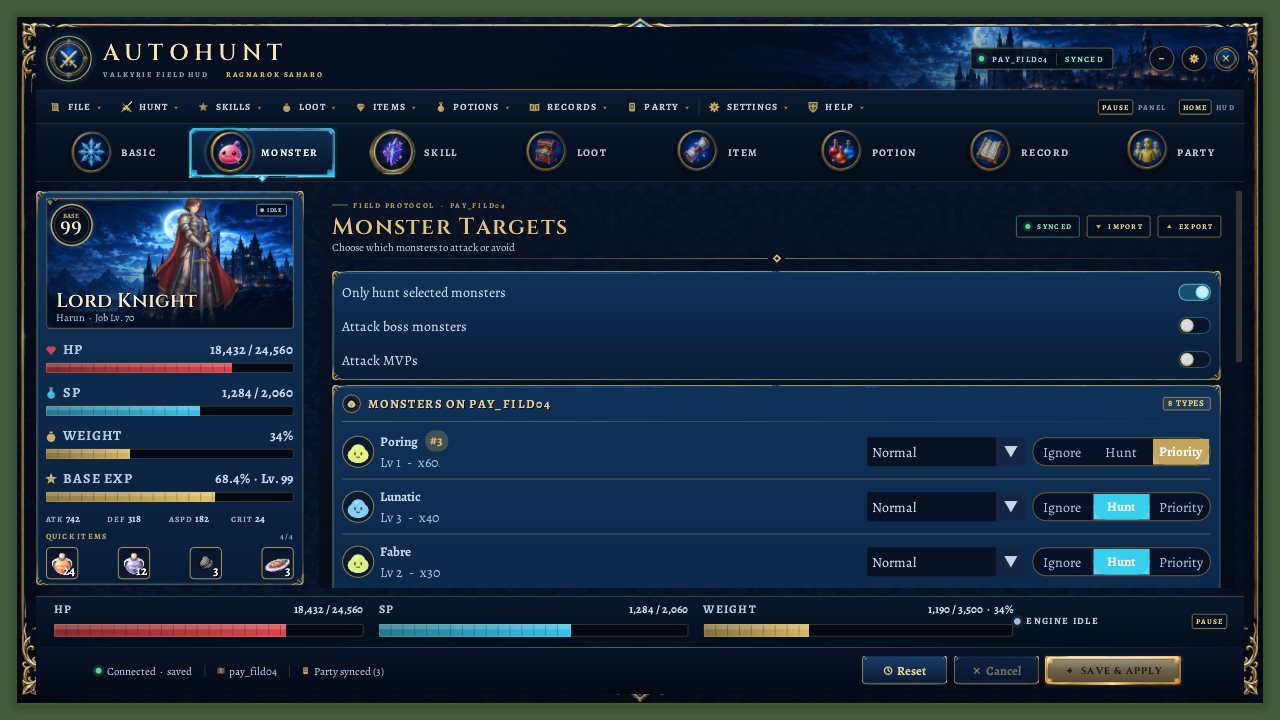
- Only hunt selected monsters: hunts only monsters marked Priority. Monsters that attack you are still fought.
- Attack boss monsters: allows boss-type monsters as targets.
- Attack MVPs: the server currently forces this off (see Server limits).
Monsters on this map
The server sends the list of monsters that spawn on your current map. Each row shows a portrait, the name, level, how many spawn (×N) and a BOSS or MVP badge. For each monster type you can set:
- Ignore / Hunt / Priority: ignore it, hunt it normally, or put it on the priority list. A number badge shows its place in the priority order.
- A rule in the drop-down: Normal, Only if it attacks me, Teleport on sight or Teleport when attacked.
Your choices are kept when you change maps. Monsters that are not on the current map are simply skipped.
Priority order
The ordered list of priority monsters. Use the arrows to move one up or down, the cross to remove it. You can also add a monster by its ID with Add priority or Add ignore. If the list is empty, everything that is not ignored is hunted by distance.
Skill tab: Skill Rotation
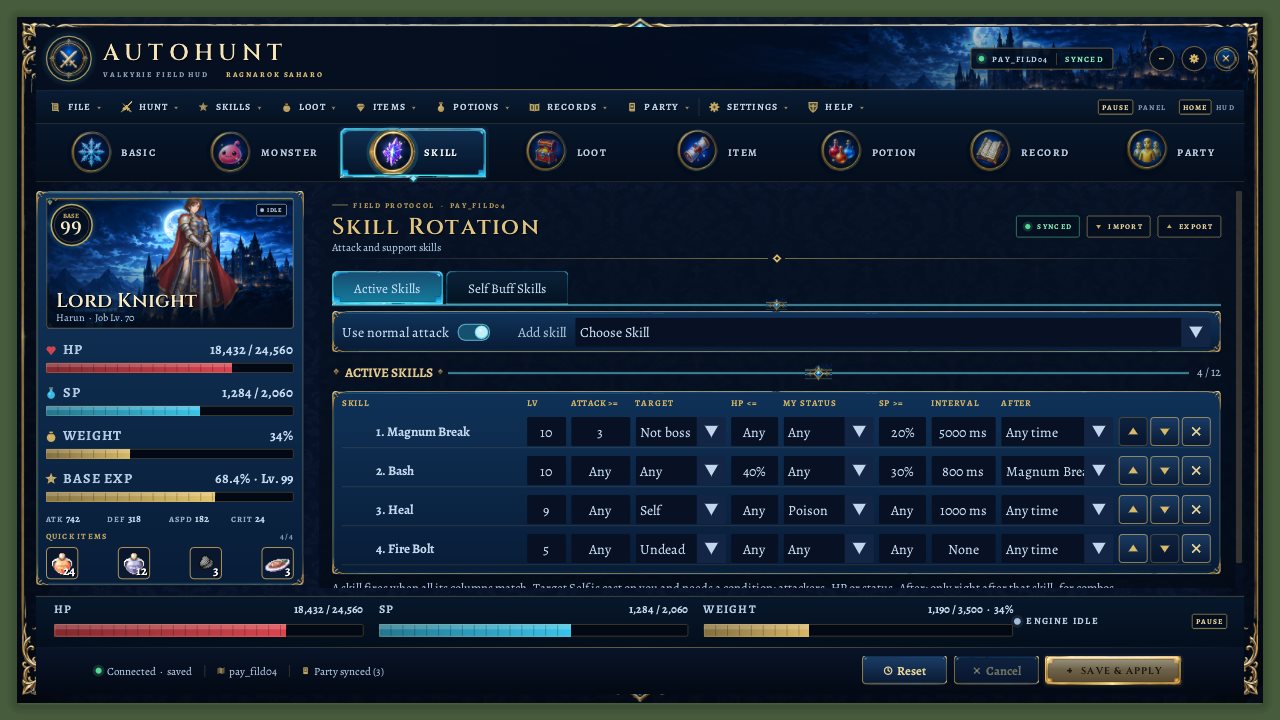
Two sub-tabs: Active Skills (attacks) and Self Buff Skills (buffs on yourself). Pick a skill from Choose Skill; only skills your character has learned are listed, passive skills are not.
- Use normal attack: on = the character attacks normally between skill casts. Off = skill-only mode: it waits up to 5 s for the next skill, skips monsters that none of your skills can target (unless they attack you), and falls back to a normal attack if no skill can be used (no SP, long interval, unmet condition).
Columns of the table
The skills are tried from top to bottom; use the arrows to reorder and the cross to remove. A skill is cast only when all its columns match.
| Column | Meaning |
|---|---|
| LV | Skill level to cast. |
| ATTACK >= | Only when at least this many monsters attack you. |
| TARGET | Any, Self, Not boss, Boss, or Undead. Self casts on you and needs a condition (attackers, HP or status). |
| HP <= | Only when the HP of the target (your own HP with Self) is at or below this percent. |
| MY STATUS | Only while you have this status: Poison, Silence, Blind, Curse, Confusion or Bleeding. |
| SP >= | Minimum SP percent. |
| INTERVAL | Minimum time in milliseconds between two casts. |
| AFTER | Only right after another skill, for combos. |
Numbers can be changed with the mouse wheel or by dragging; double-click to type a value.
Self buff skills
Known buff skills are listed here with level, Interval and Min SP. They are recast when their interval has passed.
Loot tab: Loot Rules
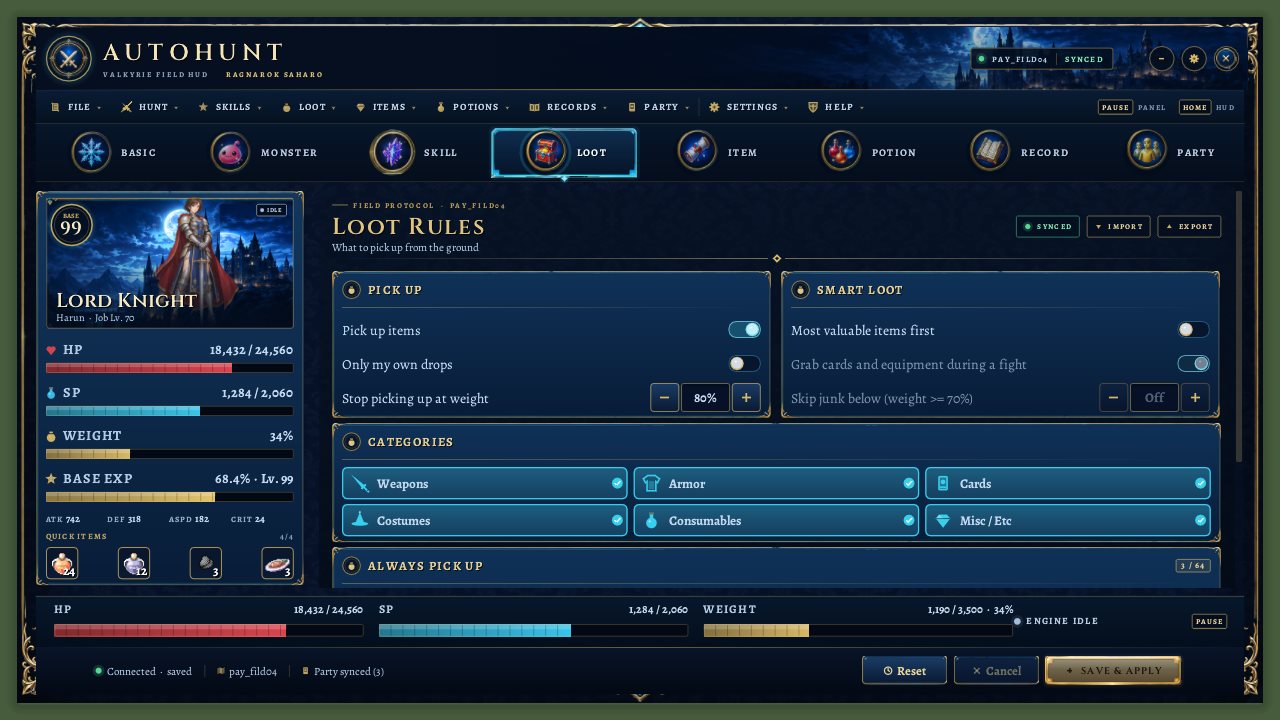
Pick up
- Pick up items: master switch for looting.
- Only my own drops: only picks up items that dropped from your own kills.
- Stop picking up at weight (up to 90%, No limit = off).
Smart loot
- Most valuable items first: cards and equipment first, then the best sell price per weight.
- Grab cards and equipment during a fight: only items right next to you; everything else waits until the fight is over.
- Skip junk below: skips items worth less than the given zeny (Off = pick up everything). The label in the panel mentions a weight of 70%.
Categories
Six switches: Weapons, Armor, Cards, Costumes, Consumables and Misc / Etc. Turn a category off and its items stay on the ground.
Always pick up
A list of item IDs that are picked up even when their category is off. Type the item ID and press Add item.
Item tab: Items & Supply
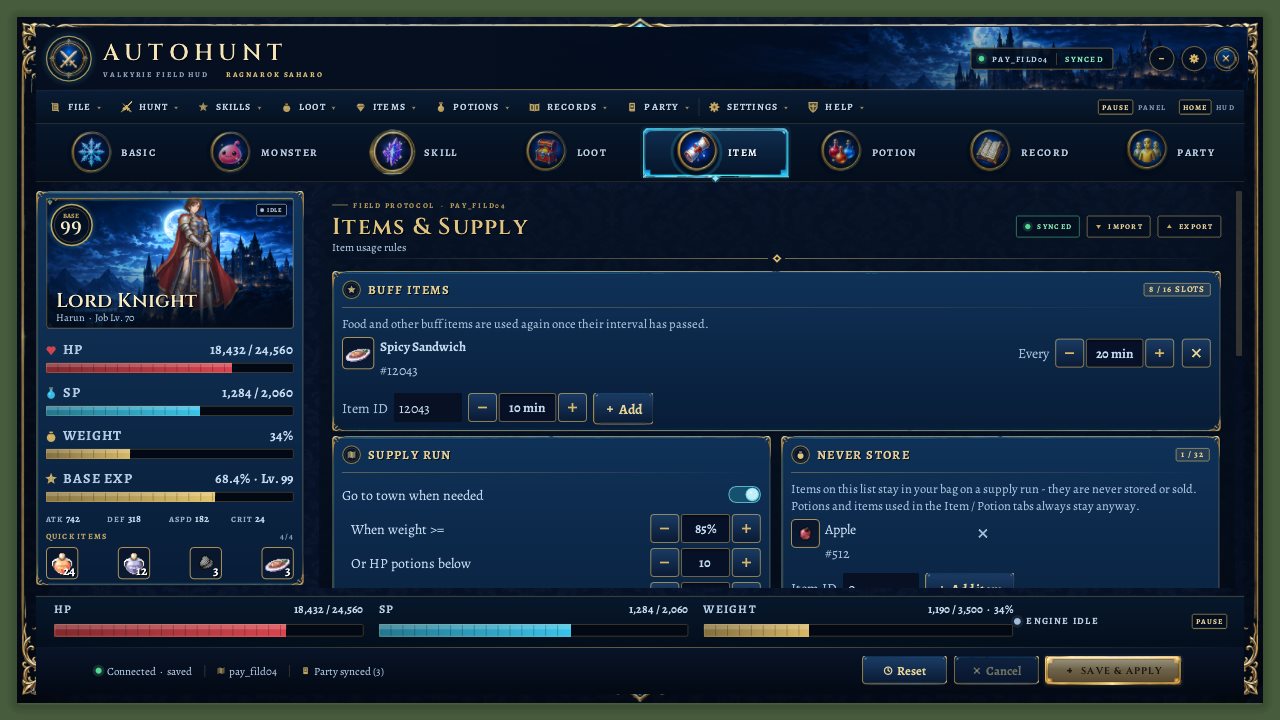
Buff items
Food and other buff items. Enter the item ID and a time in minutes; the item is used again each time that interval has passed.
Supply run
When the bag is full or the potions run low, the bot goes to town and comes back. Go to town when needed is the master switch. The bot warps to your save point, stores loot at the Kafra, sells junk and buys potions at the Tool Dealer, then returns.
- When weight >= (50-95%) and Or HP potions below (count): what triggers a run.
- Buy potions / wings up to: the amount the shopping list is filled up to.
- Store loot at the Kafra and Sell etc. junk: what to do in town.
Never store, Shopping list
- Never store: items that always stay in your bag on a supply run (never stored, never sold). Potions and items used in the Item or Potion tabs always stay anyway.
- Shopping list: items the Tool Dealer sells, bought up to the amount you set. Only items the Tool Dealer actually sells (such as Red, Orange, Yellow or White Potion, Fly or Butterfly Wing) can be bought; nothing else is.
Ammunition, storage and cart
- Auto-equip ammo (bows and guns): puts on the biggest fitting stack from your bag when none is worn. When empty: Keep going, Supply run (buys the ammo you last wore and needs "Go to town when needed") or Stop. Refill below sets the threshold.
- Put loot in cart (merchant classes): moves loot from the bag into the cart. A supply run stores loot in storage. Per item you can keep an amount in the bag and choose the source (Storage or Cart).
Teleport item
The item (for example a Fly Wing) used for every teleport from the Basic tab. Enter its ID and press Set teleport item. Without one, the server may warp you for free if it allows that.
Potion tab: Potion Rules
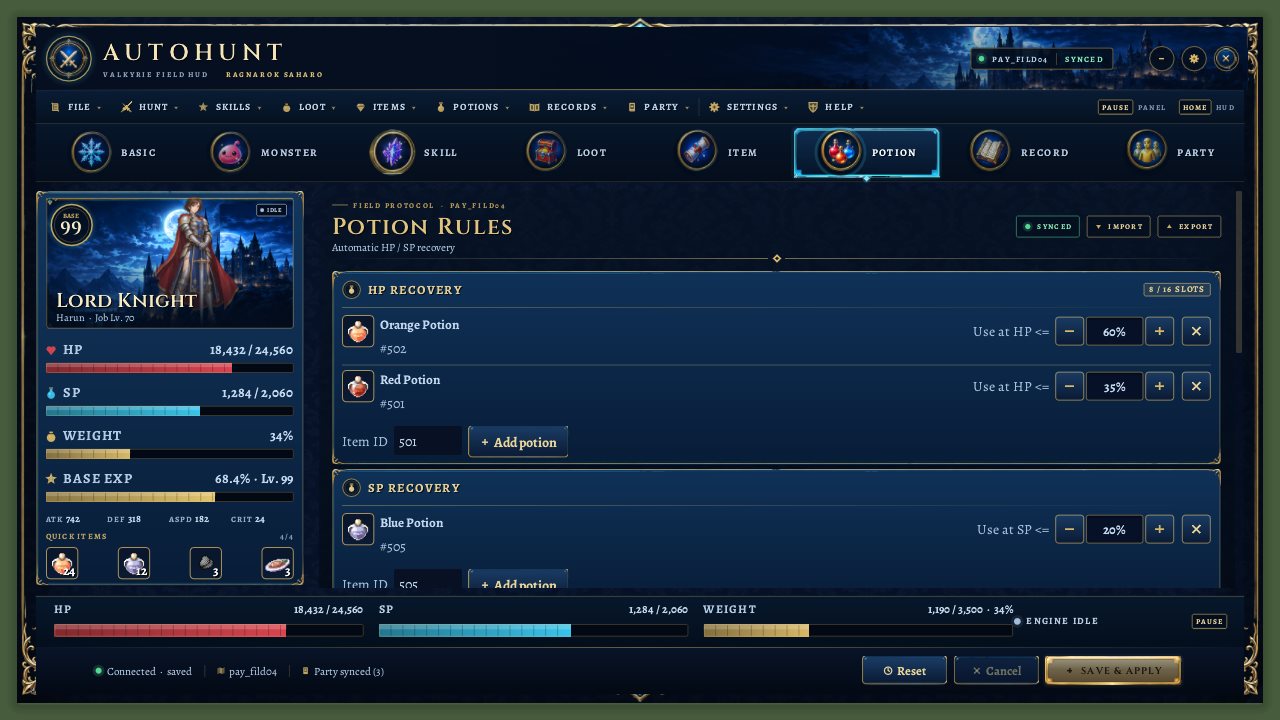
- HP recovery: item and Use at HP <= percent. Add potions by item ID with Add potion.
- SP recovery: the same for SP.
Status cure
- Switches for the cure skills your character has learned and for cure items (shown with the statuses each one removes).
- Also cure party members: use cure skills on party members too.
- A skill is tried first; while you are silenced only items work. Stun, Sleep, Freeze and Stone stop you from acting, so these only help party members.
Record tab: Session Record
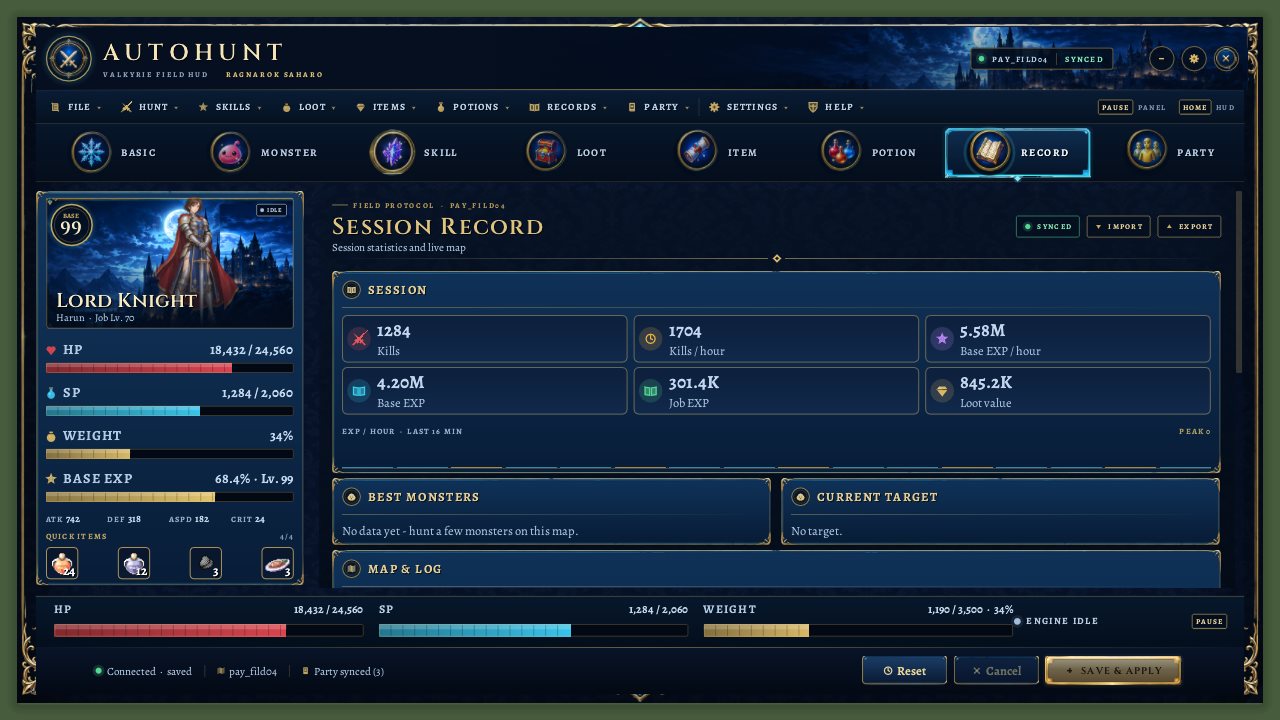
- Session: kills, kills per hour, Base EXP per hour, Base EXP, Job EXP and loot value (at NPC sell prices), plus an EXP per hour graph of the last 16 minutes.
- Best monsters: after some kills, the monsters of this map with kills, EXP per minute and a risk value.
- Current target: the monster the bot is attacking, with its HP and why it was chosen.
- Map & log: a minimap with the route, and the bot's log. Filter it with All, Info or Warnings.
Map Rotation
The bot can switch between maps on its own. Switch maps automatically is the master switch. Enter the map names (lowercase, for example pay_fild04), then choose when to move on:
- No monsters for (minutes), Kills per hour below and Players on map >=. Each can be Off.
Interface
- Skin: Valkyrie (dark) or Classic (light).
- UI scale: 80% to 200%.
- Show HUD button: the same as the
Homekey.
Party tab: Party Command
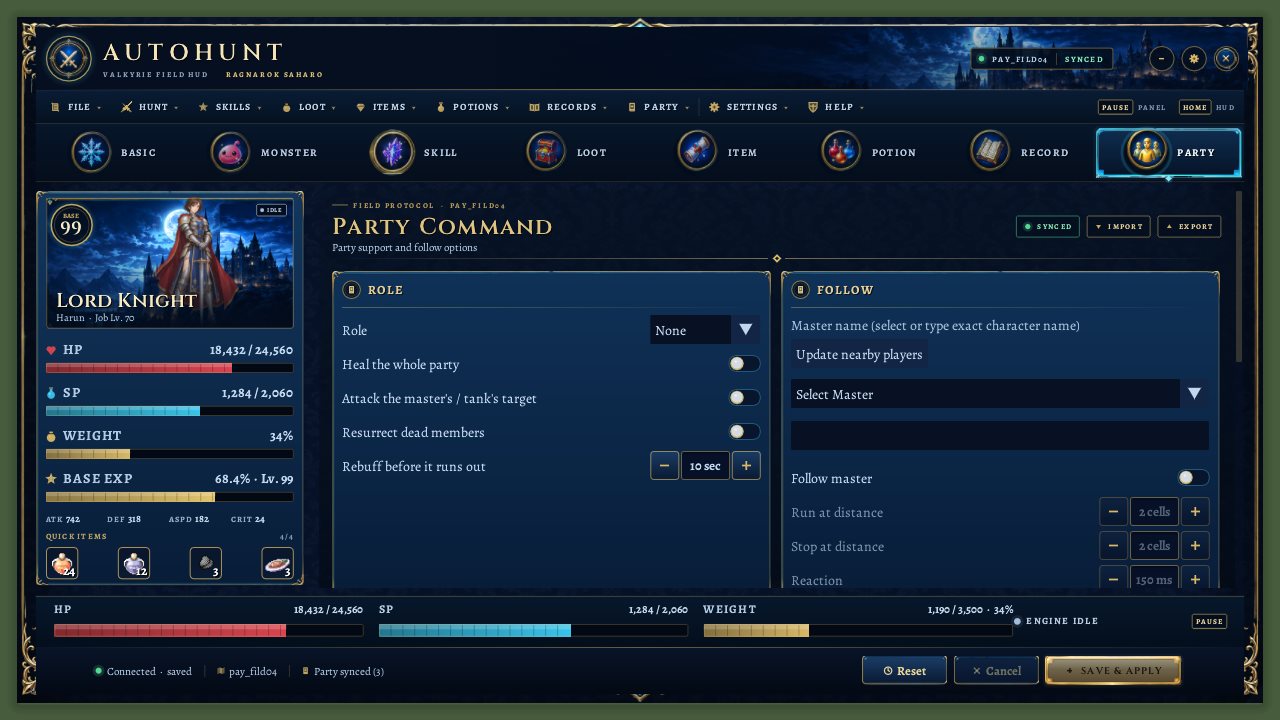
Role
- Role: None, Healer, Tank, Damage or Support.
- Heal the whole party, Attack the master's / tank's target, Resurrect dead members.
- Rebuff before it runs out (2-60 s): recasts party buffs shortly before they expire.
Follow
- Master name: press Update nearby players, then pick the character from the list, or type the exact character name.
- Follow master: runs after the master when farther than Run at distance, stops at Stop at distance. Reaction is how often it checks (100-1000 ms).
Heal master
- Skill ID and level, Heal below HP, Skip at HP >=, Min SP and Cooldown.
- Smart heal level: uses the lowest level that fills the gap, or the highest your SP allow; the skill level you set is the limit.
- Heal tank below HP: a separate threshold for members with the Tank role.
Companions, buffs and combat
- Feed pet, Homunculus: call, feed, attack, Mercenary: attack my target (a mercenary you already hired).
- Buffs (self + master): add buff slots with skill ID, level and recast interval in minutes. Each target has its own timer.
- Attack mode: off = pure support (the character does not hunt). On = the normal AutoHunt system runs.
Party play
AutoHunt works well in a party. A typical setup is one attacker as the master and one or more support characters that follow:
- Both characters join the same game party.
- On the support character, open the Party tab, press Update nearby players, choose the master and turn on Follow master.
- Set the role (for example Healer), turn on Heal master with the right skill, and add buffs under Buffs (self + master).
- Turn Attack mode off if the support should only follow, heal and buff.
- Save & Apply, then start the hunt on each character.
When your party members also run the client, the footer shows Party synced with the member count, and the character card lists the party.
Server limits
The server enforces these rules whatever the panel shows. They are the current server settings and can change.
- Not allowed in
- Towns, PvP and GvG maps, and a list of cities (Prontera, Izlude, Morocc, Geffen, Payon, Alberta, Aldebaran, Yuno, and the starter and prison maps)
- Search range
- Maximum 14 cells
- Resurrection items
- Up to 3 per session
- MVPs
- Attacking MVPs is switched off
- Teleport
- Allowed; a free warp is used when you have no teleport item
- Supply run / map rotation
- Allowed
- Not automated
- Warp Portal and Teleport skills (you cannot automate them in the skill table)
- Time limit
- None per session
You also cannot start AutoHunt while dead, while you have a shop open or while you are in a chat room. Changes to your settings can be sent at most about once per second.
Tips
- Start with the defaults and change one thing at a time. Reset brings the defaults back.
- Always carry potions and a teleport item: a hunt without them is the most common way to end in a death.
- Use the Monster tab to put the best EXP monster on Priority and ignore the dangerous ones. After a few kills, Best monsters in the Record tab shows what pays on this map.
- Turn on Danger Sense and set a teleport item for hunts you do not watch.
- Use Export Profile to keep a backup of a setup that works.
- Keep Sit to recover on so the character does not run on empty HP and SP.
Common questions
Why did my hunt stop?
The server reports the reason to the panel; look at the log in the Record tab. The possible reasons are:
| Reason | What to do |
|---|---|
| Stopped by you | You pressed Stop (or the HUD). |
| Character died | Carry a resurrection item and enable it under Resurrection, or choose Return to map under After death. |
| Overweight | You turned on Stop when overweight, or the bag is too full. Turn on the Supply run or tighten the loot options. |
| Map not allowed | You moved to a map where AutoHunt is not allowed (see Server limits). |
| Time limit | The server has a session time limit set (currently none). |
| Disconnected / Server shutdown | The connection was lost or the server restarted. Start the hunt again. |
| Stuck | The bot could not find a way. Move the character and start again. |
| Invalid config / GM command | Your settings were rejected, or a GM stopped it. |
| Out of ammo | Ammunition ran out and When empty is set to Stop. |
The Start button is grey.
The footer shows "Not allowed here" or "Offline". Hover the footer text for the reason, for example a map that does not allow AutoHunt.
My changes do nothing.
Press Save & Apply. The footer must say "Connected · saved".
Does the bot keep hunting when I log out?
No. The hunt ends when you disconnect.
The panel does not open.
Press Pause while you are in the game world. On the login and character screens the panel is not available.
Can I use AutoHunt in a town?
No. Towns, PvP and GvG maps are blocked.